
WHAT IT IS
What importing a statement means in Tally
Importing means choosing a file you already downloaded from your bank (CSV, Excel, or Norma 43) so Tally can propose the movements it contains. You review them and decide which ones are saved.
It is not a bank connection. Tally does not access your account, does not ask for your credentials, and does not fetch movements on its own. Each import starts when you select a file and ends when you confirm the rows you want to add.
It is useful for bringing in a history or a full month without typing, while keeping control over what enters the app and which account it goes to.
FORMATS
Which files Tally accepts
Three formats: CSV and Excel (.xlsx) exported from online banking, and Norma 43, the Spanish statement standard. One file is imported into one Tally account.
| Format | How to get it | How Tally reads it | Keep in mind |
|---|---|---|---|
| CSV | Export movements from online banking. Spanish banks usually separate with semicolons. | Extracts the rows on your phone and sends text only to normalize amount, date, concept, and type. You review the proposal. | Up to about 1,000 rows per import. Headers and totals are discarded. |
| Excel (.xlsx) | Export movements in the modern Excel format. | Same as CSV: text rows normalized for review. | Legacy Excel (.xls) is not supported: export as .xlsx or CSV. |
| Norma 43 | Download the Norma 43 / Cuaderno 43 file from online banking (.txt, .n43, or similar). | Reads amount, date, and type exactly, without AI. Only concepts are sent to clean them and suggest a category. | One file must contain a single account. If the category suggestion fails, the import continues with the bank's exact data. |
CSV
Importing a bank CSV
CSV is the most common online-banking export. Tally detects the separator (comma or semicolon) and the encoding (UTF-8 or Latin-1), discards empty or decorative rows, and extracts each movement as text. It then sends those rows, with IBANs and card numbers masked, to a secure function that normalizes them: amount, date, concept, type, and a suggested category.
Every bank names its columns differently, so the proposal arrives with a confidence level per field and you review it before saving. You do not need to prepare the file: export it as is and review it in Tally.
EXCEL
Importing an Excel (.xlsx) file
If your bank exports to Excel, choose the modern .xlsx format. Tally reads the sheet on your phone, treats it like a CSV, and shows the same preview. Legacy .xls is not supported; if your bank only offers that, export as CSV or open the file and save it as .xlsx.
If you keep your expenses in your own spreadsheet, you can bring it over too: export the sheet to .xlsx or CSV and review the proposed rows. It is the way to move to Tally without retyping.
NORMA 43
Importing a Norma 43 file
Norma 43 (also Cuaderno 43 or CSB 43) is the standard statement format of Spanish banks. It is a fixed-width text file with the account header, each movement with its date, amount, and sign, and control totals at the end.
Tally recognizes it by content, not by extension, and reads amount, date, and type exactly, without AI. Only the concept texts are sent to clean them and suggest a category; if that suggestion is unavailable, the import continues with the bank's exact data and you assign categories by hand. If the file holds more than one account, Tally asks you to export a single one.
BEFORE YOU START
How to get your statement
Every bank names it differently, but the path is similar everywhere.
Sign in to online banking
The browser version usually offers more export options than the bank's app.
Open the account movements
Choose the account and the period you want to bring into Tally. One file per account.
Look for “Export” or “Download”
Select CSV, Excel (.xlsx), or Norma 43 / Cuaderno 43, depending on what your bank offers.
Save it where your phone can see it
In Files (iPhone), in phone storage (Android), or in a cloud folder you can reach from your phone.
IN TALLY
Step by step in Tally
Import lives next to “Scan receipt” under the + button. It requires Tally PRO: without it you see the PRO screen before choosing any file.
Choose the destination accountPRO
One file is imported into a single Tally account. If you need several, run one import per account.
Select the file
CSV, .xlsx, or Norma 43. Tally reads it on your phone and discards headers, totals, and empty rows.
Wait for the proposal
Rows are normalized in batches. For CSV and Excel, text travels with IBANs and cards masked; for Norma 43, only the concepts. The whole file is never uploaded.
Review the preview
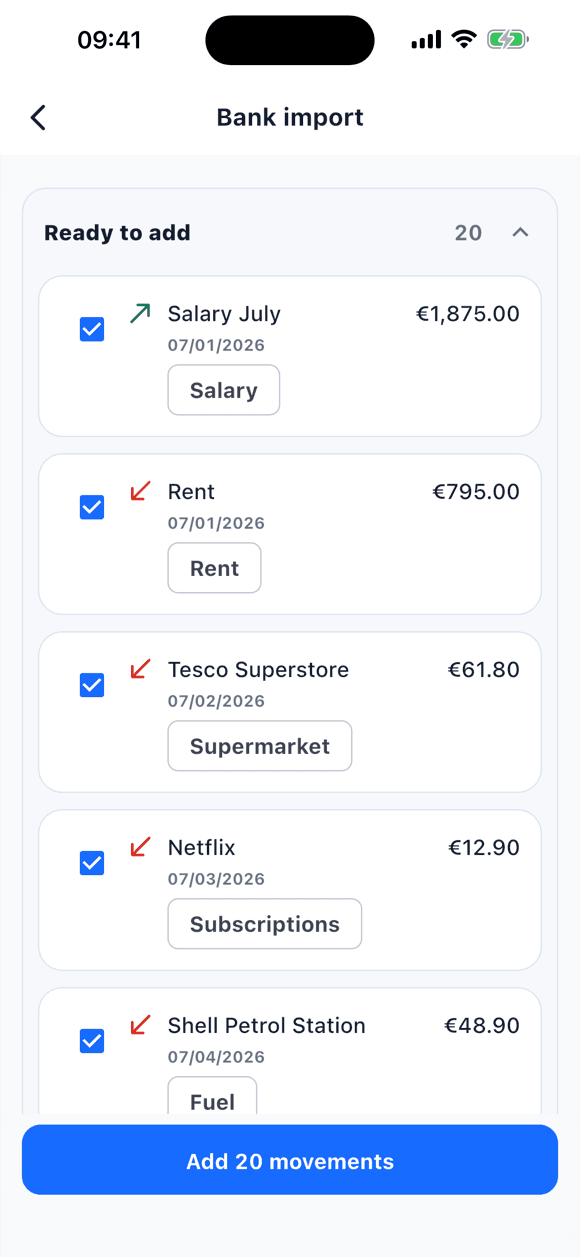
Each proposed movement shows amount, date, concept, type, and category with a confidence indicator. Possible duplicates against what the account already holds arrive unchecked. Edit any field or uncheck rows.
Confirm
Only the rows you leave checked are saved. If you cancel, nothing is created. Afterwards you can edit or delete any movement like any other.
PRIVACY
What leaves your phone during import
The whole file does not leave the device. Tally reads it on your phone and sends only what is needed to prepare the proposal.
- CSV and Excel: text rows are sent in batches, with IBANs and card numbers masked, to a secure function that asks an AI model to normalize them. Neither the file nor the rows are stored; technical logs keep only metrics.
- Norma 43: amount, date, and type are read on the phone. Only concept texts travel to clean them and suggest a category.
- Confirmed movements are saved on your device like any other. They only sync if the destination is a shared account you enabled.
- Duplicates are detected on the phone by comparing date, amount, and type with what you already have.
THE DIFFERENCE
Importing a file is not connecting your bank
| Aspect | Import in Tally | Automatic bank connection |
|---|---|---|
| Who starts it | You, by choosing a file you downloaded. | The service, on its sync schedule. |
| Bank credentials | Never given to Tally. | Part of the provider's authorization. |
| What gets saved | Only the rows you confirm. | Depends on the app and the provider. |
LIMITS
Good to know beforehand
- Statement import is a Tally PRO feature.
- Formats: CSV, Excel .xlsx, and Norma 43. No PDF and no legacy .xls.
- One file goes into one account; a Norma 43 file must contain a single account.
- About 1,000 rows per import. Split very long statements by period.
- We do not publish a list of supported banks: any bank that exports CSV, .xlsx, or Norma 43 works, and the preview lets you fix whatever the proposal gets wrong.
- Re-importing a CSV exported by Tally itself happens in Settings; it is a separate merge flow for your own data, free, without row-by-row review.
FAQ
Frequently asked questions
Do I need to connect my bank to import?
No. You download the statement from online banking and choose it in Tally. No bank credentials are requested and no connection is made.
Is my bank supported?
If your bank can export movements as CSV, Excel (.xlsx), or Norma 43, yes. We do not publish a bank list: the formats are standard and the preview lets you fix any field before saving.
Is my statement uploaded to a server?
The whole file never leaves your phone. To prepare the proposal, text rows (CSV and Excel) or concepts only (Norma 43) are sent, with IBANs and cards masked, to a secure function that stores nothing.
What about movements I already had?
Tally compares date, amount, and type with the destination account and flags possible duplicates, which arrive unchecked in the preview. You decide.
Can I undo an import?
Before confirming, always: cancel and nothing is created. Afterwards, imported movements are regular movements you can edit or delete one by one.
Is it free?
Statement import requires Tally PRO. Manual entry, receipt photos, and re-importing Tally's own exported CSV from Settings are free.
Keep reading
Keep going
Import is one of the four ways to log in Tally. These pages complete the picture.
Start with Tally
Import your statement into Tally
Download the app, create the destination account, and bring in your first statement. You review every row before saving.
Statement import is a Tally PRO feature · The app is free · Account required